Download YouTube Videos on iPhone: SKYouTube - iKurd
Learn how to download YouTube videos on iPhone with SKYouTube. Save 4K clips, block all ads, and enable background playback easily on iKurd Store.
 iKurd Store
3 min read
iKurd Store
3 min read
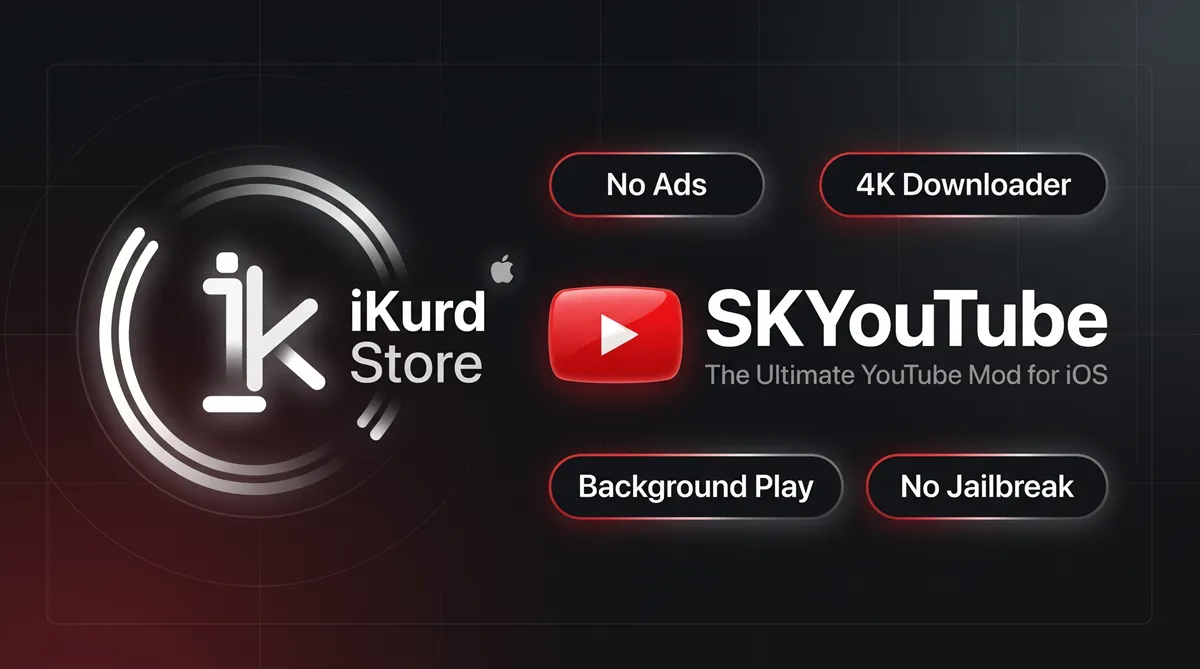
If you want to download YouTube videos on iPhone, SKYouTube is the ultimate solution available on iKurd Store. Unlike the standard YouTube app which requires paid subscriptions or complex online downloaders, this customized edition allows you to save high-resolution media straight to your device storage, block video ads, and enjoy background playback without jailbreak.
Why Use SKYouTube Instead of the Regular YouTube App?
The default YouTube app places major restrictions on iPhone and iPad users. You cannot save video files directly to your camera roll, background playback stops the moment you exit the app, and unskippable ads disrupt your viewing experience.
SKYouTube unlocks all these premium options natively inside the app, giving you complete freedom over playback and media storage.
 SKYoutube
Version 21.29.3
Get
SKYoutube
Version 21.29.3
Get
How to Download YouTube Videos on iPhone Using SKYouTube
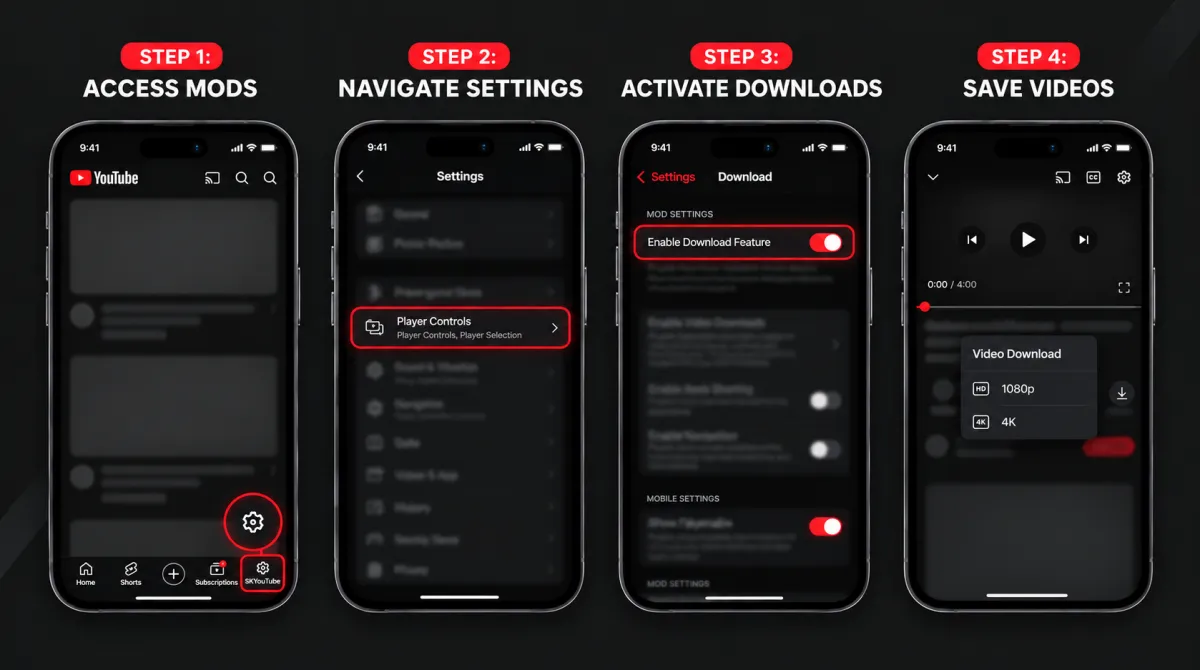
Saving media directly to your iOS device is seamless with SKYouTube. Follow these simple steps to activate the built-in downloader and save your favorite content:
Open the SKYouTube Settings Panel
Launch the YouTube app on your iPhone, locate the SKYouTube tab in the bottom navigation bar (or open your Account menu), and tap the Gear icon to enter the tweak settings
Access the Player Controls Menu
From the main tweak configuration screen, tap on Player Controls to view all playback and media-handling tools
Enable the In-App Download Feature
Turn on the toggle switch for Enable Download Feature. This automatically embeds a native download button directly on the video player interface.
Choose Resolution and Save the Video
Open any video or Short you want to keep offline, tap the new Download button on the player, and pick your preferred quality (from 720p up to pristine 4K 60FPS) to save it directly to your device storage.
How to Enable Othres Features in SKYouTube
Accessing the tweak settings is straightforward. Open the app, tap the SKYouTube tab in the bottom bar, and tap the Settings gear icon in the top corner. From there, you can toggle any feature on or off.
Block Ads and Sponsor Segments
- In tweak settings, open Player Controls and turn on Remove Ads.
- Go to the SponsorBlock section and switch on Enable.
- Choose your automated actions to instantly skip sponsors, intros, and subscriber reminders.
Turn on Background Play and Picture-in-Picture
- Navigate to Player Controls.
- Turn on Background Playback to keep audio running when your screen is locked.
- Switch on Picture-in-Picture to watch videos in a floating window while using other apps.
Lock Video Quality to Maximum Resolution
- Tap on Wi-Fi Quality or Cellular Data Quality.
- Select your default resolution tier (such as 1080p60 or 2160p60 4K) to prevent automatic quality drops.
Configure Swipe Gestures for Volume and Brightness
- Open the Gestures menu.
- Enable volume and brightness controls to adjust sound and screen brightness by swiping on the edges of the video player.
Frequently Asked Questions
Questions
Can SKYouTube download YouTube videos on iPhone in 4K?
Yes. SKYouTube allows you to select any available resolution up to 4K (2160p at 60 FPS) and save the media file directly to your device.
Is SKYouTube compatible with iPad screens?
Yes. The app includes a dedicated iPad Mode in its settings that optimizes the layout, multi-column navigation, and playback controls for larger iPad displays.
Do you need a computer or jailbreak to install it?
No. You can install SKYouTube directly via Safari through the iKurd Store catalog with a single tap.
Can I log in with my Google account safely?
Yes. SKYouTube supports Google login and includes built-in playback fix tools to keep your subscriptions, playlists, and watch history completely synced.